PROMPT RECORD图像记录
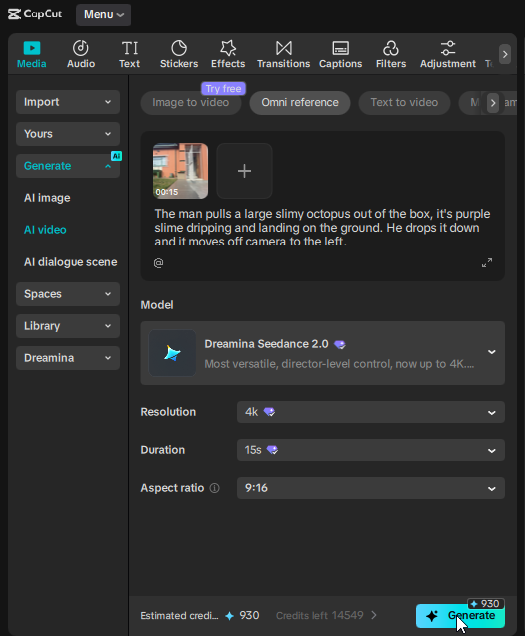
🪄 如何修改自己的拍摄素材? 很简单,如果你使用的是 @capcutapp,进入「生成」,选择「AI 视频」、「Omni Reference」,上传你的视频,选择 Dreamina Seeda...
中文说明
🪄 如何修改自己的拍摄素材? 很简单,如果你使用的是 @capcutapp,进入「生成」,选择「AI 视频」、「Omni Reference」,上传你的视频,选择 Dreamina Seedance 2.0,挑选分辨率和时长,输入描述画面变化的提示词,然后点击「生成」即可。 额外小技巧 —— 即便你拍摄的素材不到 15 秒,你仍然可以选择 15 秒,这样编辑后的素材时长会比原片更长。 另一个小技巧是,Seedance 2.0 会改变画面运动,它并不是 1:1 复制原视频的运动,但如果你在提示词开头加入相关指令,它就能更贴近原片的运动。你可以说「Keep the scene the same」,或者使用更详细的指令:"Preserve exactly: all camera angle, framing, mot...
原始 Prompt
🪄 How Do I Alter My Own Footage?

It's simple, if you're using @capcutapp, go to Generate, AI Video, Omni Reference, upload your video, select Dreamina Seedance 2.0, choose a resolution and duration, type your prompt describing what happens and click on Generate.

BONUS TIP - Even if your footage was less than 15 seconds, you can still select 15 seconds, thus making your edited footage even longer than the footage you filmed.

Another tip is that Seedance 2.0 can change the motion, it does not copy it 1 to 1 in relation to the original video BUT if you try this at the start of your prompt it can follow it a lot more closely. You can say "Keep the scene the same" or a slightly more detailed instruction "Preserve exactly: all camera angle, framing, motion, lighting, and background environment. If a character is present preserve their identity."

If you know any other solid tips to keep the motion almost 1 to 1, feel free to share in the comments.

#CapCutVideoStudio #CapCutSeedance2 #CapCutCPP